Guide
Handle Claude Code permission prompts across several sessions
Every Claude Code session asks for permission on its own, in its own terminal. Run one and that is fine. Run five and one of them is usually stopped on a prompt while you read another, and a stopped session does no work. Four things help, in this order: make the repeat prompts stop, pick a permission mode on purpose, know which session is waiting, and answer from one place.
Why the prompts pile up
By Claude Code's permissions documentation, shell commands need approval except for a built-in set of read-only commands, file edits ask, and so do web fetches (apart from a set of documentation domains) and web searches. Each session raises its own prompts, so the number you face grows with the number of sessions you run.
1. Turn repeat prompts into rules
Choose Yes, and don't ask again on a prompt and Claude Code remembers the answer. For a shell command or a web domain the approval is saved permanently, as a rule in .claude/settings.local.json at the root of the git repository. The documentation says the rule is resolved through worktrees to the main checkout and applies to future sessions anywhere in that repository, including worktrees (since Claude Code v2.1.211), with exceptions outside a git repository and on Windows. A file-edit approval is not saved; it lasts until the session ends.
You can also write rules yourself. Shell rules use a pattern such as Bash(npm test *), and /permissions lets you review and edit what is saved. Keep rules exact: a rule allows what it names for every session in the repository, so npm test * is a better rule than anything that allows all of npm.
2. Pick a permission mode on purpose
Each session runs in a permission mode, and the documentation lists these:
- Manual (
default): asks on first use of each tool. acceptEdits: accepts file edits and common filesystem commands such asmkdir,mvandcpin the working directory.plan: explores and reads but does not edit your source files.auto: runs without routine prompts while a background classifier checks that shell commands and network requests fit your request.bypassPermissions: skips prompts except for actions no mode approves automatically.
A mode that removes prompts also removes the moment where you would have caught a bad command. Give the quiet modes to sessions working on low-risk tasks in their own worktree, and keep Manual for anything that touches the network, a database or your credentials.
3. Know which session is waiting
Claude Code's agent view (claude agents, a research preview) lists background sessions by state and counts a permission decision as Needs input. It does not answer the prompt for you: a reply typed in the peek panel waits in the queue, and to answer the dialog you attach to the session. The official VS Code extension also marks a conversation that needs input.
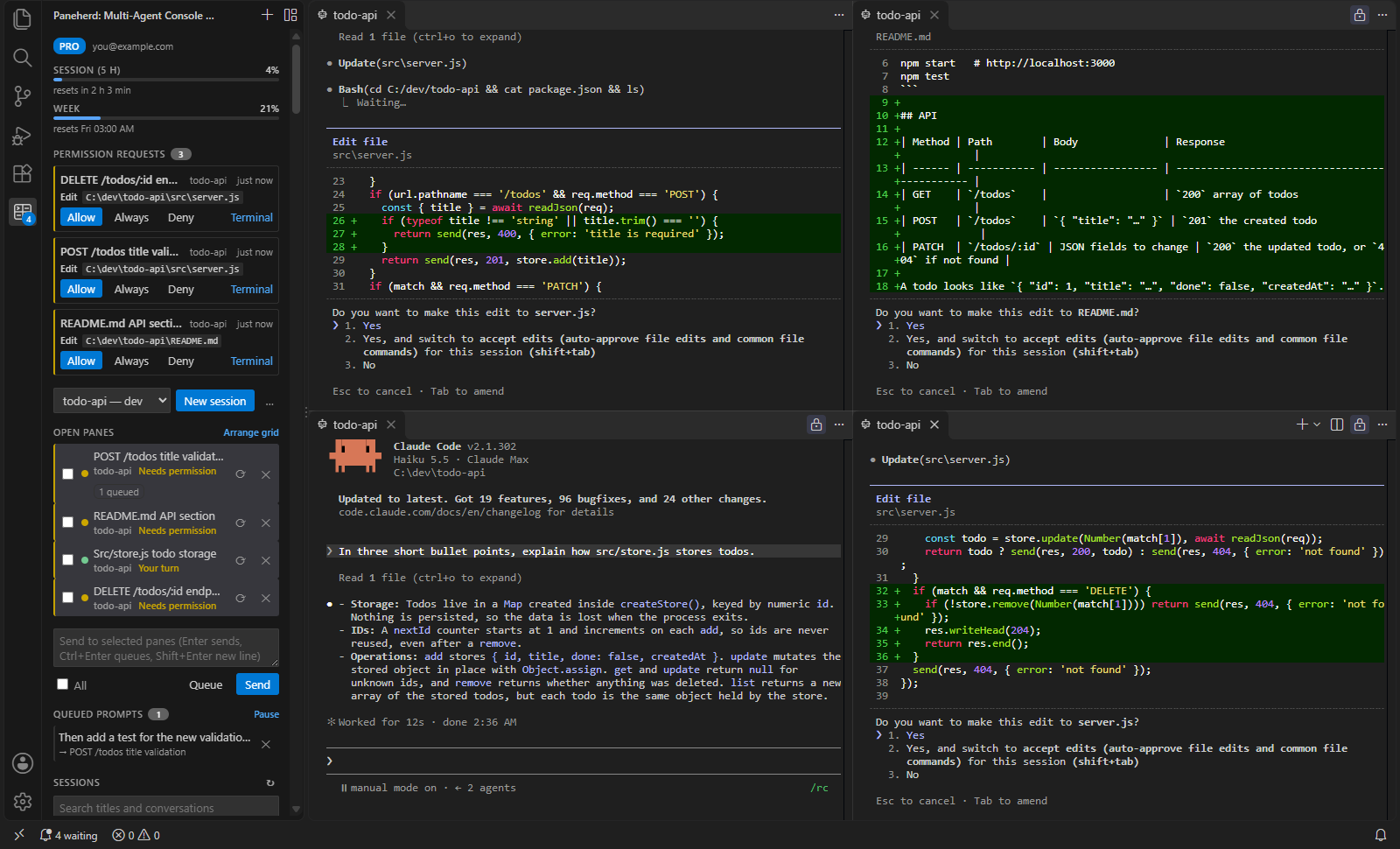
In a grid of editor terminals, Paneherd shows the same thing from Claude Code's own hook events: each pane reads Working, Needs permission, Has a question or Your turn, the sidebar and status bar count the panes that need you, and one command jumps to the next.
4. Answer from one place
Paneherd's permission inbox (Pro) collects the prompts from every pane in the sidebar, each with the command, file or URL in question, and gives you Allow, Always and Deny there. Claude's own dialog stays open in the pane, and whichever you answer first wins. For shell commands, Always passes back the rule Claude Code itself suggested, so it is saved to the same .claude/settings.local.json as the rule from step 1.
A routine that holds up
- Read the command before you press Always. A saved rule applies to every session in the repository from then on.
- Give each session its own worktree, so a prompt about a file is about that session's copy. See running multiple sessions.
- Answer quickly. A session stopped on a prompt finishes nothing until you do. Several sessions also draw on one plan allowance; see how parallel sessions use your limits.
- Review
.claude/settings.local.jsonnow and then and delete rules you no longer want.