Guide
Run multiple Claude Code sessions at once
Claude Code works best on one focused task at a time, so the way to get more done is to run several sessions in parallel: one fixes a bug, one writes tests, one updates the docs. Doing that well comes down to three things: keeping the sessions from overwriting each other, noticing when one of them is waiting for you, and not running out of usage halfway through.
1. Separate terminals
The simplest way: open a terminal per task and run claude in each, or use split panes in tmux, Windows Terminal or your editor. It costs nothing and works everywhere.
What it leaves to you: every session asks for permission in its own terminal, so you have to look at each one to see which is stuck. If two sessions work in the same folder, they can edit the same file without knowing about each other.
2. Git worktrees
A git worktree is a second checkout of the same repository in another folder, on its own branch. Give each session that changes code its own worktree and they cannot overwrite each other; you merge their branches when they are done. Claude Code can create one for you with claude --worktree.
What it leaves to you: each worktree needs its own dependencies installed and its own dev server port, and you still watch each session separately.
3. Claude Code's agent view
Claude Code has its own view of running sessions (claude agents), and the official VS Code extension shows the status of each session. Agent view lists background sessions by state (working, needs input, completed) and, inside a git repository, moves each session into its own worktree before it edits; the extension runs several conversations in tabs and queues a message you send while Claude works. Permission prompts are still answered in each session. See the Claude Code documentation for what your version includes.
4. A grid in VS Code or Cursor
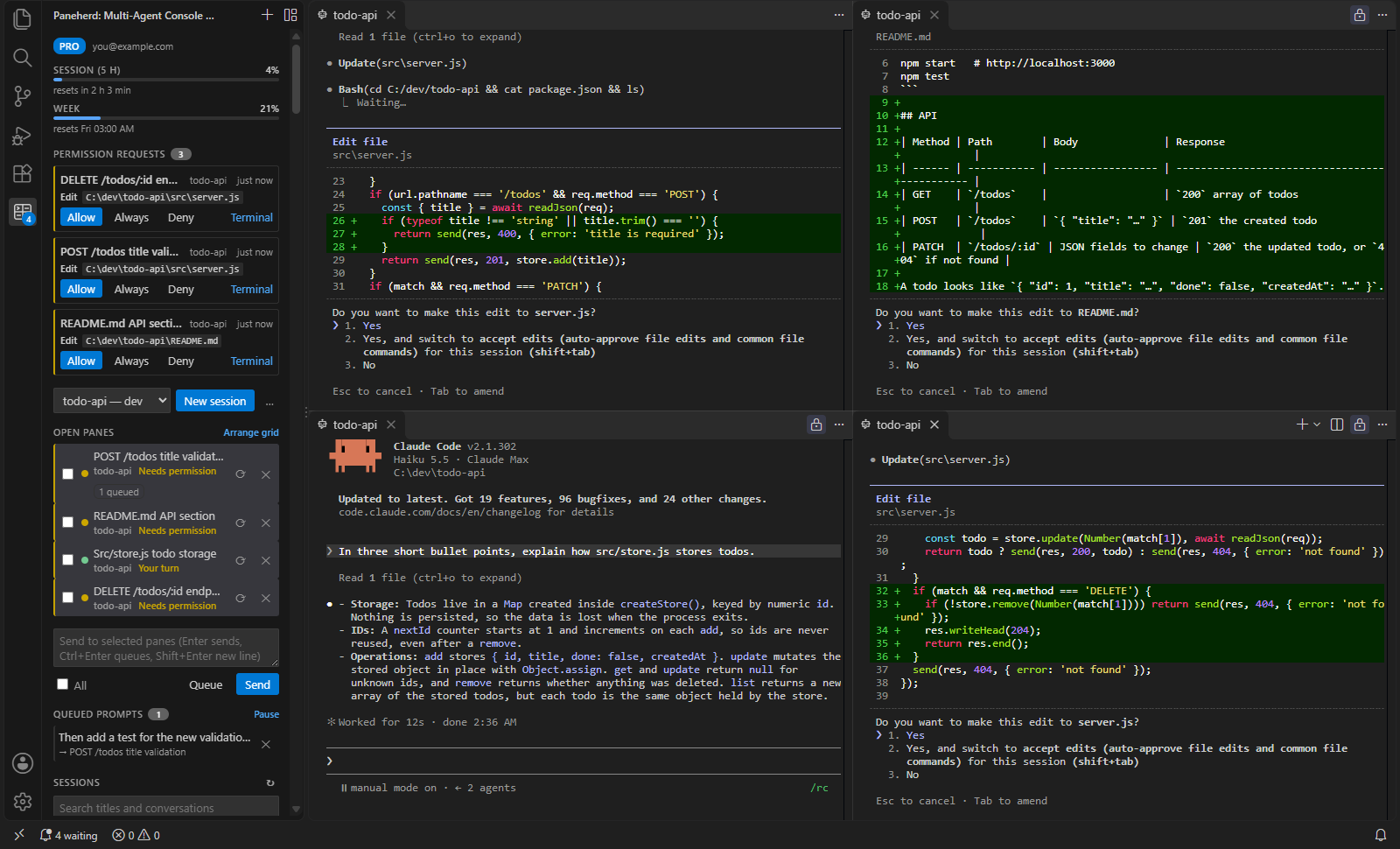
Paneherd is an extension that opens each session as a real terminal in the editor area and lays them out in a grid. The sidebar shows each session's status from Claude Code's own hook events, counts the ones waiting for you, and jumps to the next one. On top of that:
- One permission inbox (Pro): prompts from every session collect in the sidebar, with the command or file, and you answer them there.
- Conflict guard (Pro): when sessions share a folder, Claude asks before editing a file another session changed in the last ten minutes.
- Broadcast and queue: send one prompt to several sessions, or queue the next prompt for a busy one (queue is Pro).
- Usage limits: the five-hour and weekly limits of your plan, at the top of the sidebar.
It works alongside worktrees: open a session per worktree and see them all in one window. The free version runs up to four sessions at once.
Tips that apply whichever way you choose
- One task per session, stated in the first prompt. Sessions that wander are the ones that collide.
- Do not let two sessions edit the same files. Split work by area, or use worktrees.
- Keep permission prompts on for anything that touches the outside world. Answer them quickly so sessions do not sit idle.
- Watch your limits. Parallel sessions use your plan's limits several times faster.